Reference guide
A tour of every window, tab, pane, and menu in Milonga, with a short note on what each control does. Use it as a lookup — for step-by-step setup, start with the Quick start.
Milonga has two windows: the Control window (on your DJ screen) and the Display window (on the projector). Everything you touch lives in the control window; the display window only shows the result.
Control window
The control window is organised into three tabs — one per phase of the evening — with a menu bar above and a status bar below.
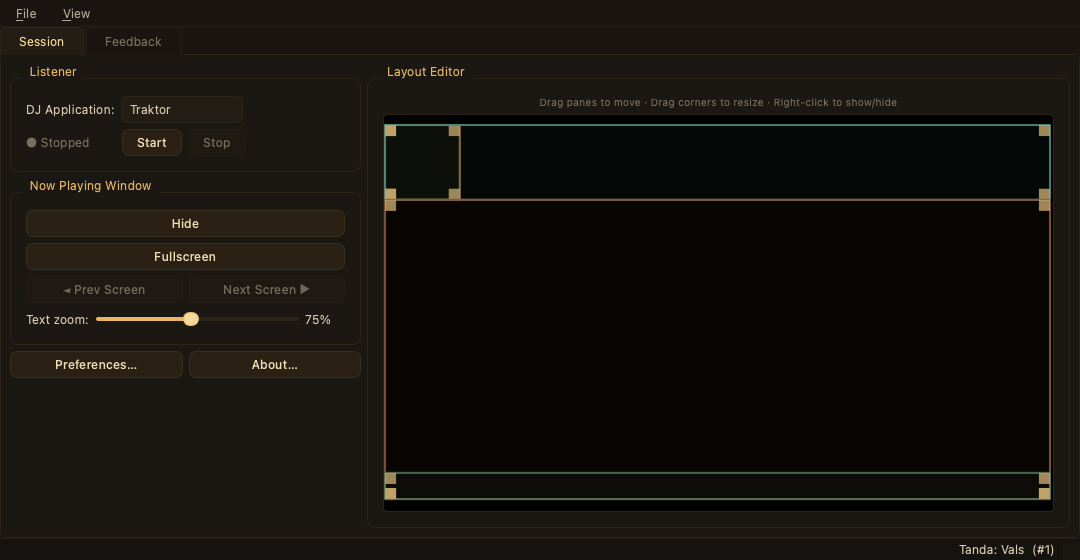
Menu bar
| Menu | Item | What it does |
|---|---|---|
| File | Preferences… | Opens the Preferences dialog. |
| Run Setup Wizard… | Re-runs the first-run wizard. | |
| Quit | Closes Milonga. | |
| View | Show Display Window | Brings the display window back if it was hidden. |
| Help | About Milonga | Opens the About dialog. |
Status bar
- Left — the listener indicator: ● Stopped (grey), the running app in cyan (e.g. ● Traktor), or ● Error (red; hover for the message).
- Right — the current genre and the song count within the tanda.
Setup tab
Everything you prepare before the milonga. It has three sub-tabs: Event, Display, and Layout.
Setup → Event
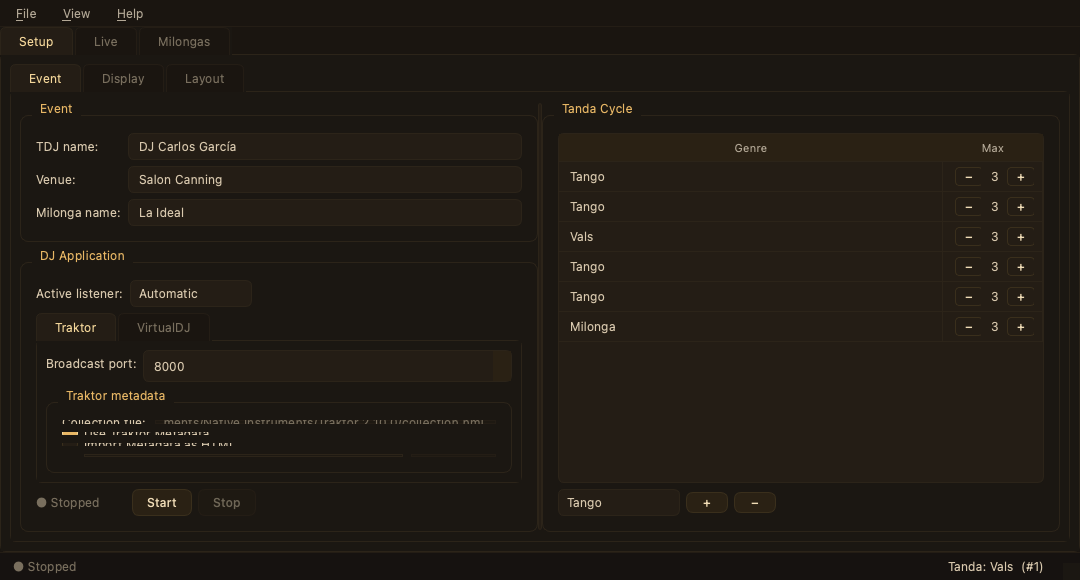
| Group | Control | What it does |
|---|---|---|
| Event | TDJ name | Name shown in the DJ-name banner. Applies live. |
| Venue | Used in the welcome message (Welcome at [Venue]). | |
| Milonga name | Used in the welcome message and as the session name. | |
| DJ Application | Active listener | Automatic, Traktor, or VirtualDJ. |
| Traktor / VirtualDJ | Per-app settings — broadcast port, metadata import, detected paths. | |
| Start / Stop | Starts or stops listening. The dot shows the current state. | |
| Tanda Cycle | Genre rows | The tanda sequence. Double-click a genre to change it, drag rows to reorder, and use + / − to add or remove. Max sets the largest number of tracks expected in that tanda. |
Setup → Display
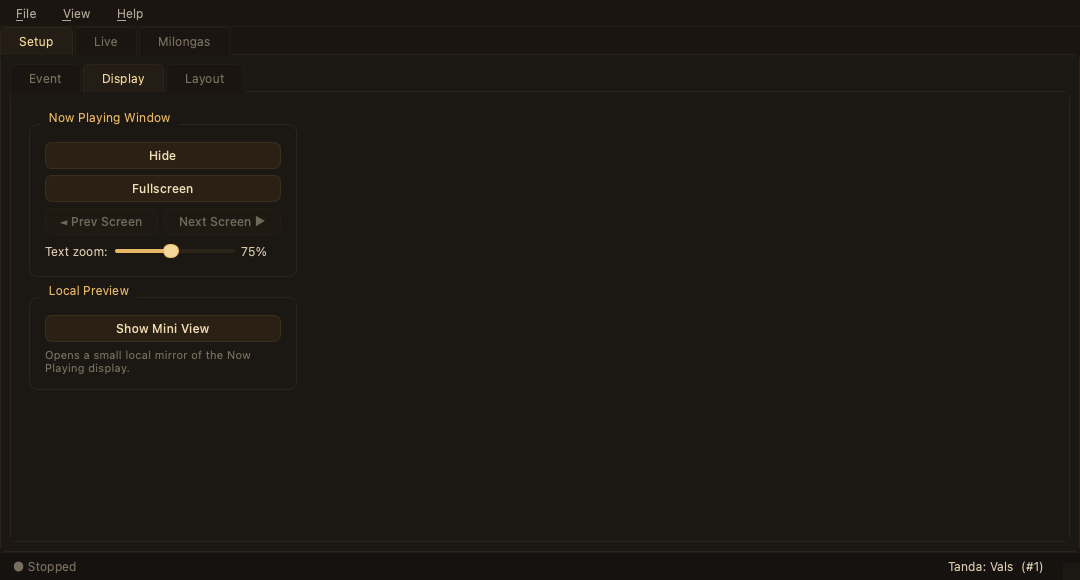
| Group | Control | What it does |
|---|---|---|
| Now Playing Window | Hide / Show | Toggles the display window. |
| Fullscreen / Normal | Fills the current screen, or restores a window. | |
| ◄ Prev Screen / Next Screen ► | Moves the display between monitors (enabled with more than one screen). | |
| Text zoom | Scales the track-panel text (10–150 %, default 75 %). | |
| Local Preview | Show Mini View | Opens a small, focusable mirror of the display you can keep on your own screen. |
Setup → Layout
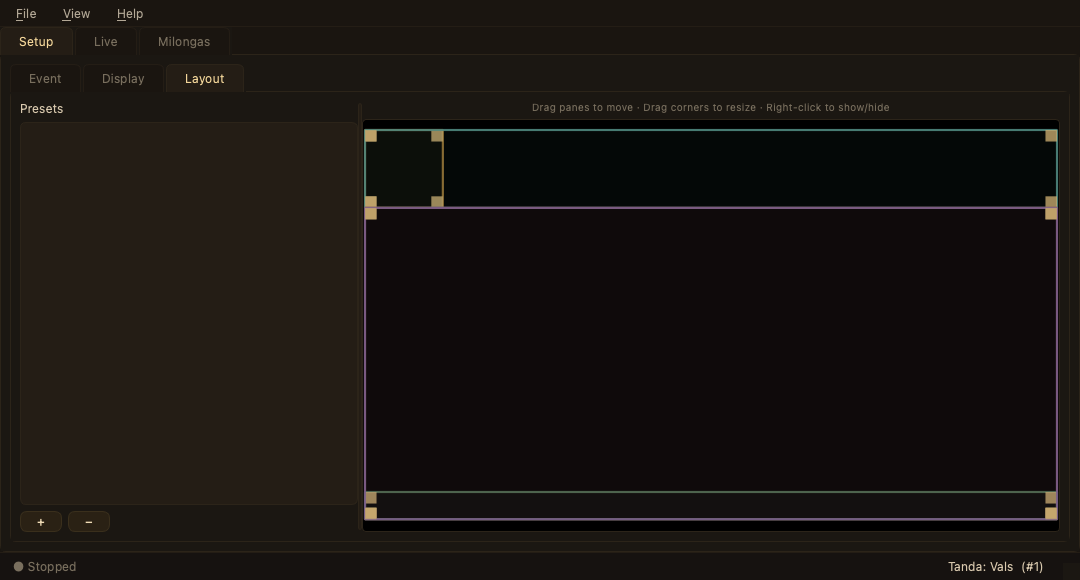
| Area | What it does |
|---|---|
| Presets (left) | A list of saved layouts. + saves the current arrangement, − deletes the selected one; double-click to rename. Editing the layout updates the selected preset. |
| Editor (right) | A scale model of the display. Drag a pane to move it, drag a corner to resize (the clock stays square), and right-click a pane to show or hide it. Changes appear on the display instantly. |
See The display window for the panes themselves.
Live tab
What you use while the music plays. Overlays on the left, match correction on the right.
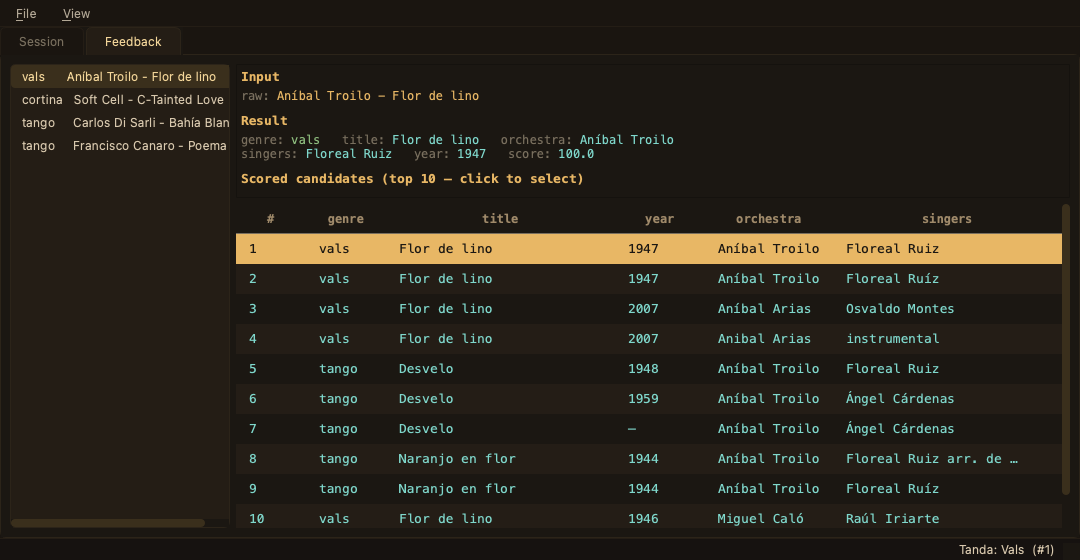
| Panel | Control | What it does |
|---|---|---|
| Display Overlays | Blackout | Blacks out the display (Unblackout restores it). |
| Last Tanda | Signals that the current tanda is the last of the night. | |
| Current Track | Returns the display to the track playing now. | |
| Welcome Message | Brings back the welcome screen. | |
| Correction | Lookup history (left) | Every track played this evening, newest first, with its resolved genre. |
| Input / Result (top right) | The raw text from the DJ app and the chosen match. | |
| Scored candidates (table) | The best candidates considered. Click a row to push that recording onto the display — and, for the current track, into the session log. |
See Matching & correction for how the scoring works.
Milongas tab
Browse, edit, and export recorded sessions. Pick a session in the list on the left (the one recording now is marked ● Live), then use the Tandas and Statistics sub-tabs. Right-click a session to rename, reveal, or delete it.
Milongas → Tandas
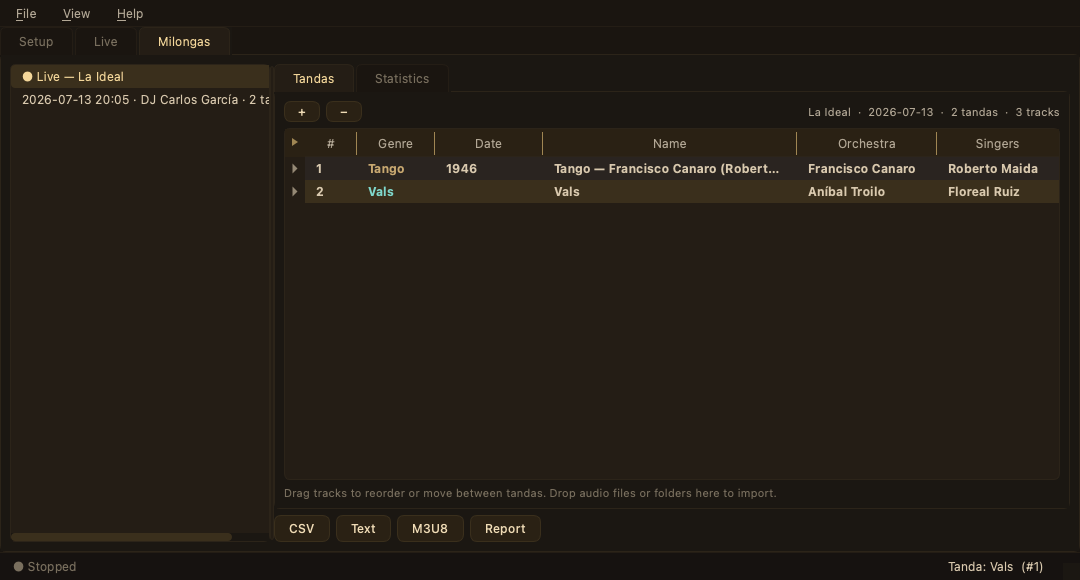
| Element | What it does |
|---|---|
| Session list (left) | All recorded sessions plus the live one. |
| Tanda tree | The evening, grouped into tandas. Drag tracks to reorder or move them; double-click (or Edit Metadata…) to edit; right-click to add, rename, merge, delete, or mark a track as a cortina. Drop audio files or folders here to import them. |
| + / − | Add or remove a tanda. |
| CSV · Text · M3U8 · Report | Export the session as a spreadsheet, a plain set list, a playlist, or a self-contained HTML report. |
Milongas → Statistics
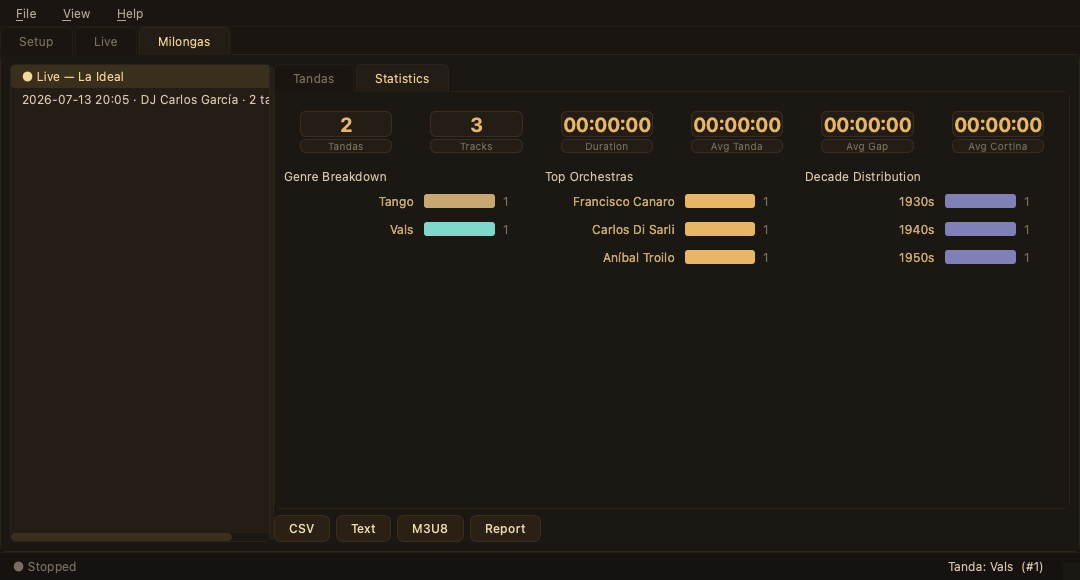
| Element | What it shows |
|---|---|
| Stat cards | Tanda and track counts, total duration, and average tanda, gap, and cortina lengths. |
| Genre Breakdown | The split across Tango, Vals, and Milonga. |
| Top Orchestras | The orchestras played most. |
| Decade Distribution | Which eras the recordings came from. |
See Recording & statistics for the full workflow.
Display window
The black screen your dancers see — five panes over a pure black canvas.
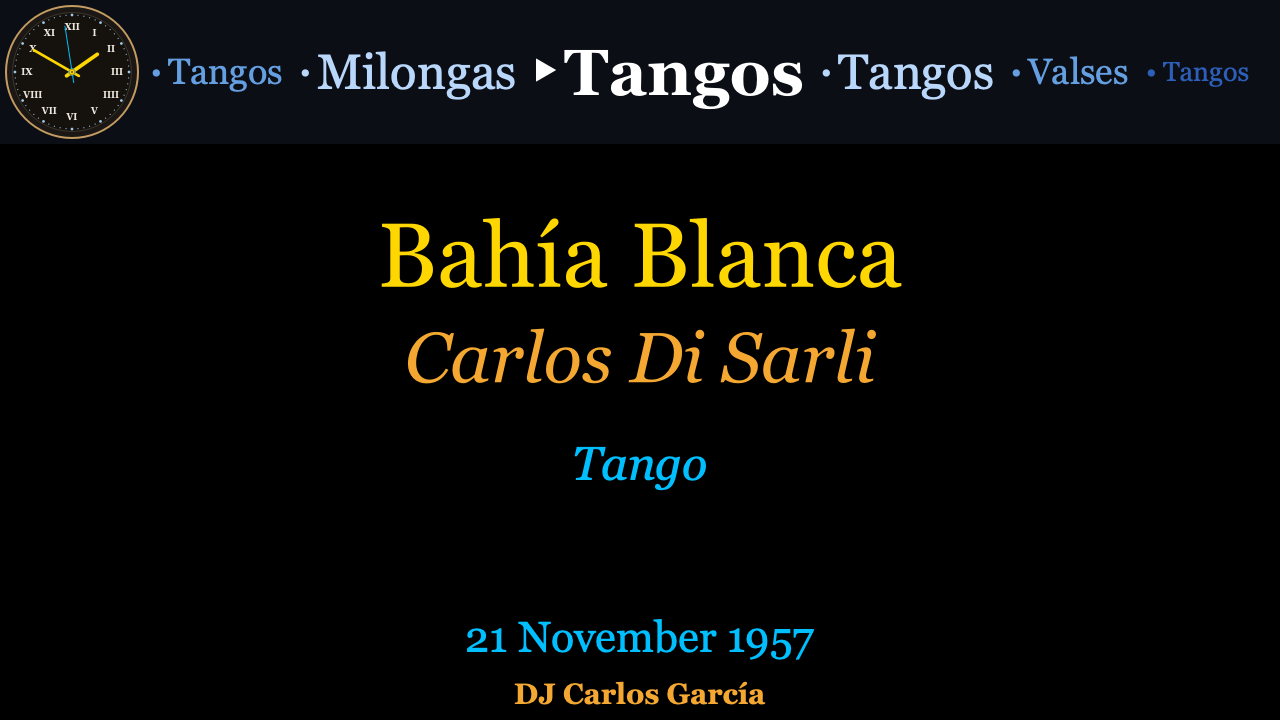
| Pane | What it shows |
|---|---|
| Track panel | Title, orchestra, genre, singers, and recording date. |
| Tanda carousel | The tanda-cycle strip, current genre centred. |
| Artwork | Cover art for the current track, behind the text. |
| Analog clock | A brass-ringed clock with a sweeping second hand. Always square. |
| DJ name banner | The TDJ name in amber. |
Before the first track it shows a welcome screen; during a cortina it shows the cortina and advances the carousel. Full details — including the five panes, the welcome and cortina states, and the live overlays — are in The display window.
Preferences dialog
Rarely-touched settings, reached from File → Preferences. Four tabs.
General
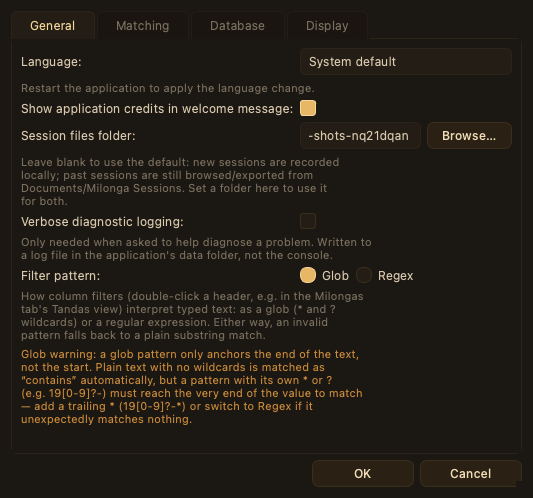
Interface language (a restart applies it), whether to show application credits in the welcome message, and the session files folder.
Matching
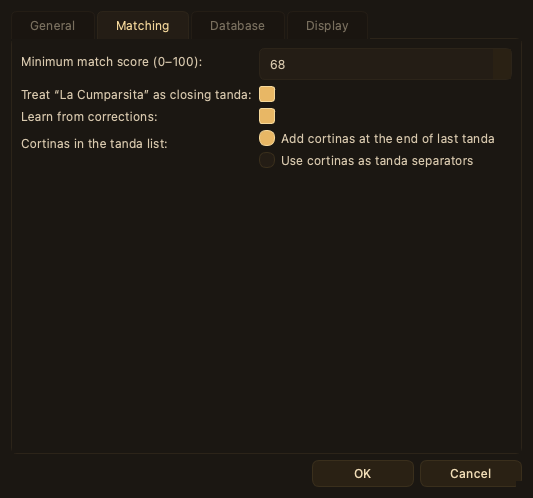
The minimum match score (default 68), whether to treat “La Cumparsita” as the closing tanda, and whether to learn from corrections. See Matching settings.
Database
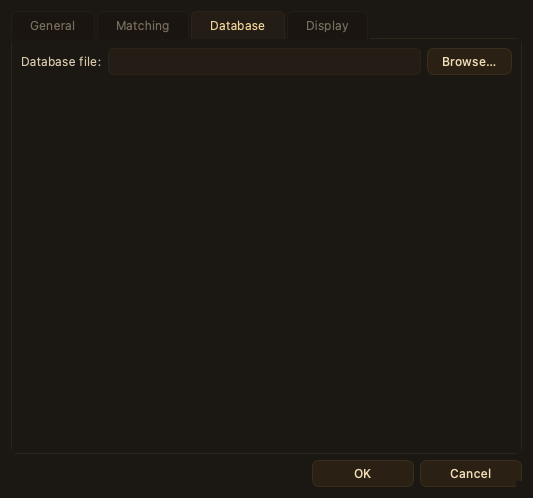
The recordings database file. Leave it unset to use the bundled ~45 000-recording database.
Display
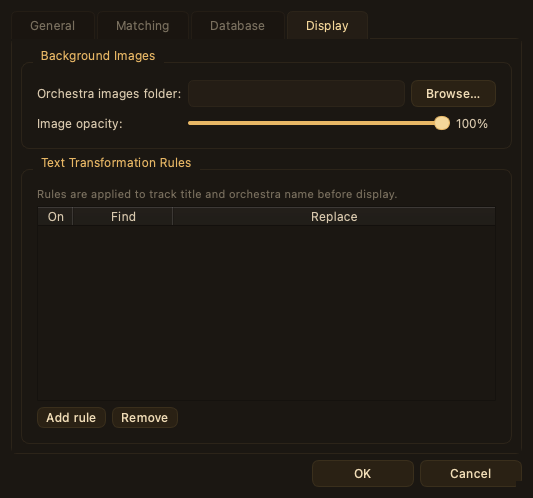
The Orchestra images folder and Image opacity that feed the Artwork pane, and Text Transformation Rules applied to the track title and orchestra name before they are shown.
Setup wizard
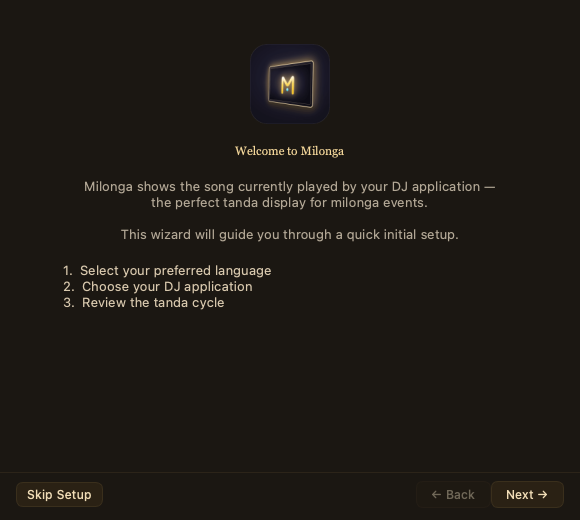
A short, four-page wizard shown on first launch (and re-runnable from File → Run Setup Wizard…): welcome, language, DJ application, and the tanda cycle. Skip Setup leaves everything at its default.
About dialog
Credits and the version number, reached from Help → About Milonga. Click the version to reveal the exact build.