The display window
The display window is what your dancers see. It is a pure black canvas with five independent panes, designed to be readable from the back of the room.
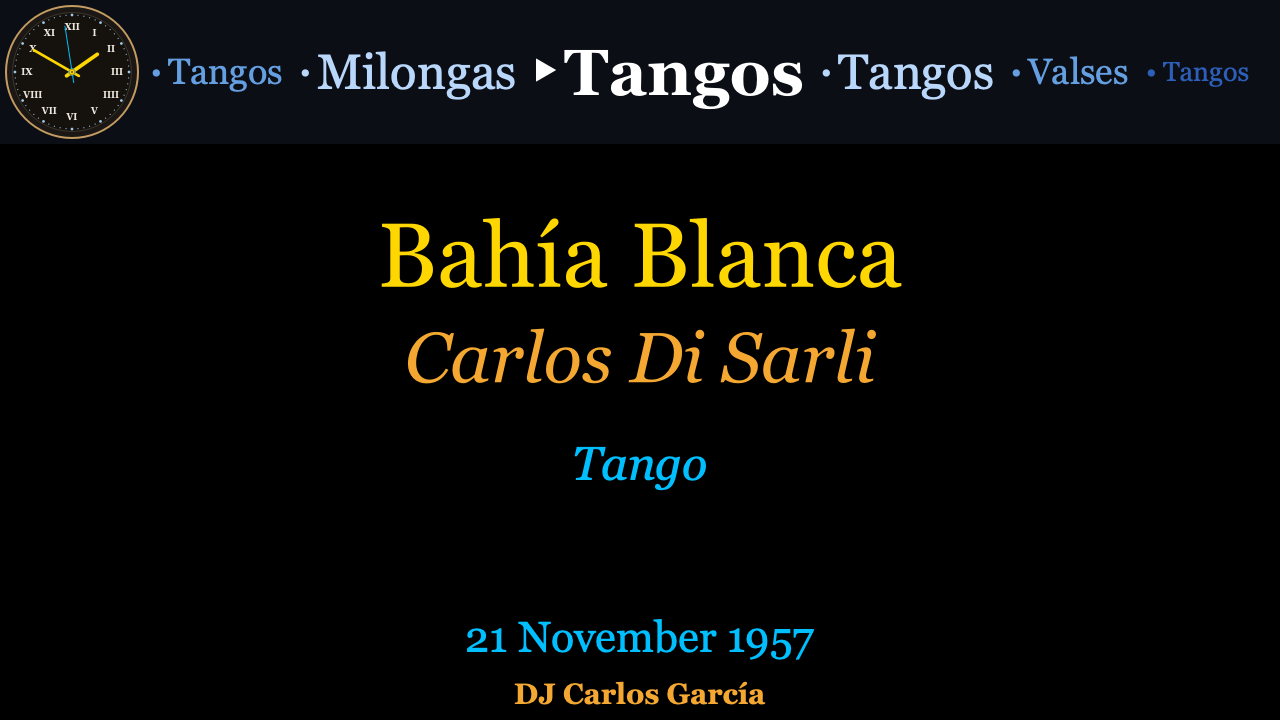
The five panes
| Pane | What it shows |
|---|---|
| Track panel | Title (gold), orchestra (amber italic), genre or sub-genre (cyan), singers, and the recording date. Text scales automatically to fill the pane. |
| Tanda carousel | The tanda cycle strip. The current genre sits in the centre, large and white; the previous and upcoming tandas fade into blue on either side. |
| Artwork | Cover art for the current track, filling its pane behind the text. See Artwork below. |
| Analog clock | A classic clock — brass bezel, Roman numerals, sweeping second hand — so the floor always knows the time. Always square. |
| DJ name banner | The TDJ name in amber, centred on a single line. |
Every pane can be moved, resized, or hidden — see Layout below.
The welcome screen
Before the first track plays, the display greets your guests using the event details from the Setup → Event tab:
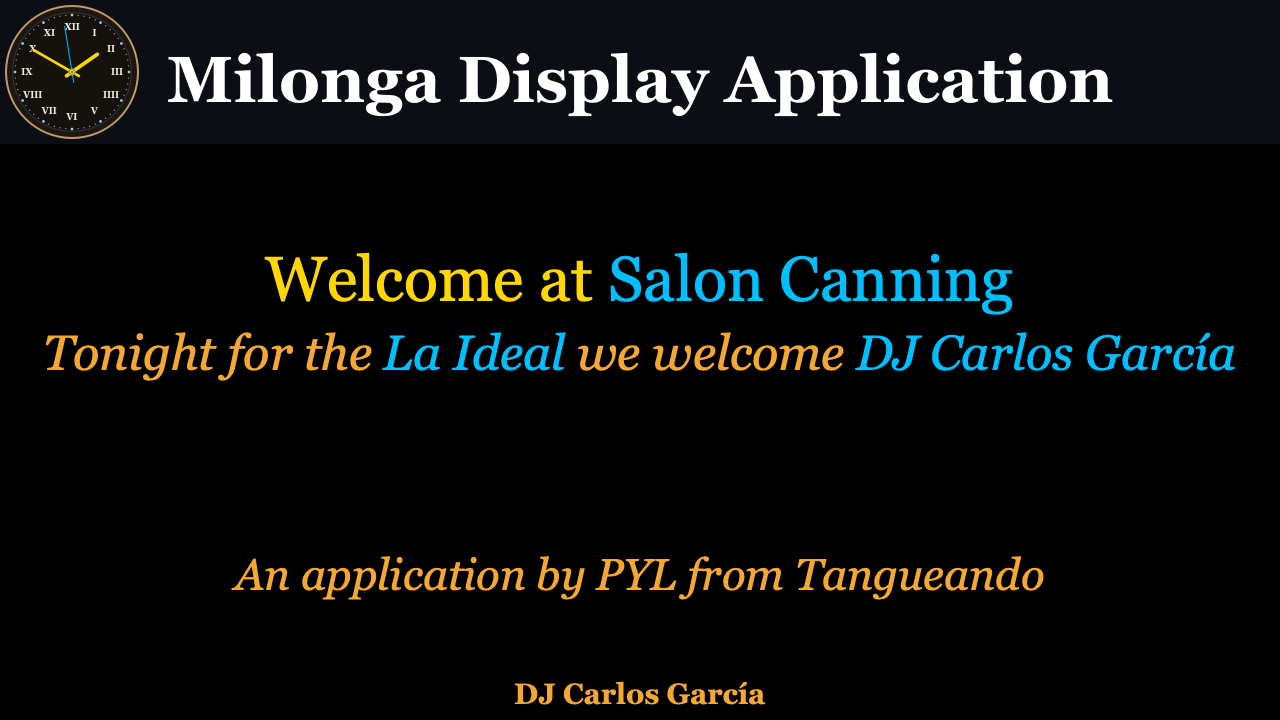
- With a venue set: Welcome at [Venue].
- With a milonga name and DJ name: Tonight for the [Milonga name] we welcome [TDJ name].
Change the details on the Setup tab at any time — the welcome screen updates immediately (until the first real track replaces it). You can also bring the welcome message back during the evening with the Welcome Message button on the Live tab.
Cortinas
When a cortina plays, the track panel shows the cortina's own title and artist with the genre Cortina, and the carousel advances to the cortina slot — with the next tanda's genres already visible on the right, so dancers can see what is coming:
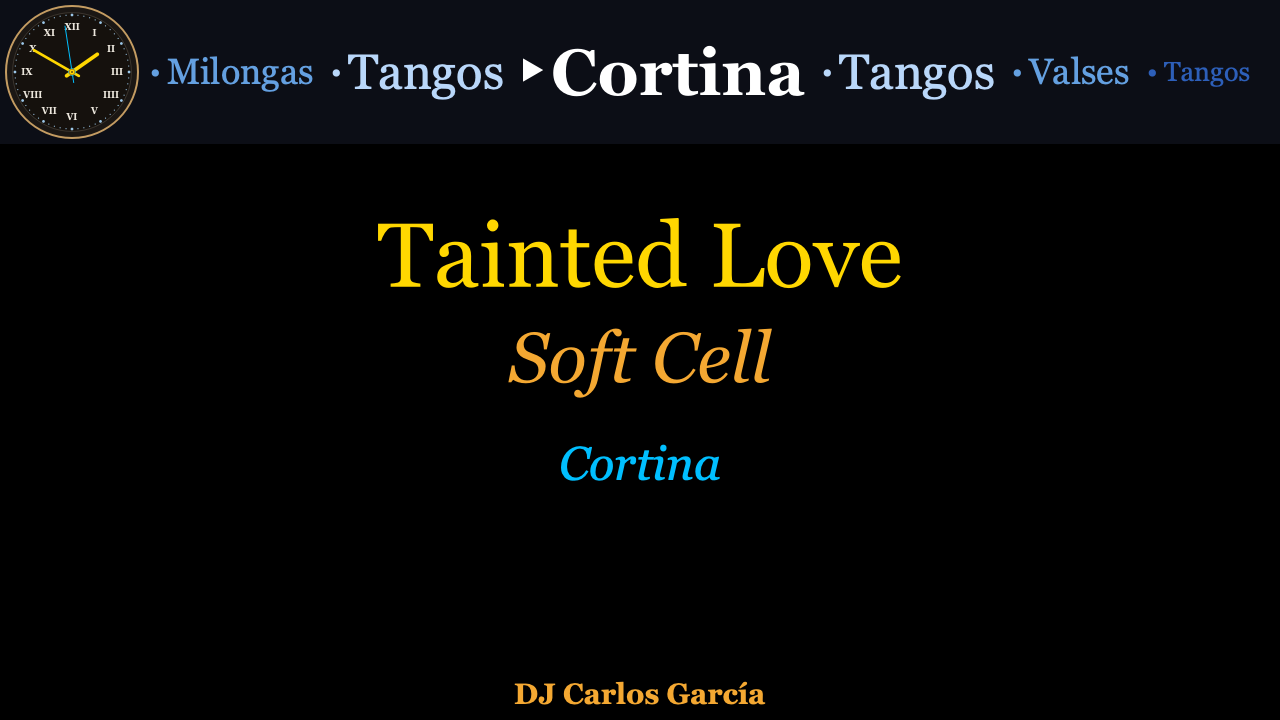
When the milonga closes with La Cumparsita, the carousel collapses to a single Cumparsita item (see Matching).
Artwork
The Artwork pane shows an image for the track playing now, filling the pane behind the metadata. Milonga looks for it in two places, in order:
- An orchestra image — a picture named after the orchestra (for example
Carlos Di Sarli.jpg) in the folder you set under Preferences → Display → Orchestra images folder. - Embedded cover art — the album art stored inside the audio file, when Milonga can reach the file.
The image is scaled to fill its pane without distortion, and its strength is set by Image opacity in Preferences → Display — low opacity keeps the track text easy to read on top. When there is no image for a track (and during cortinas), the pane simply shows nothing, so the panes beneath it stay fully visible. Like every pane, Artwork can be moved, resized, or hidden on the Setup → Layout tab.
Layout
Open the Setup → Layout sub-tab in the control window to arrange the panes:
- Drag a pane to move it.
- Drag a corner handle to resize (the clock stays square).
- Right-click a pane to hide or show it on the display.
You can also drag the panes directly in the display window with the mouse.
All positions are stored as fractions of the window size, so the layout looks the same whether the display runs windowed, fullscreen, or on a different resolution. Every change is saved immediately and restored on the next launch.
Presets — save arrangements you use often (for example, one with the clock and one without) in the preset list beside the editor, and switch between them in one click.
Screens and fullscreen
The Now Playing Window panel on the Setup → Display sub-tab drives where the display lives:
| Control | Effect |
|---|---|
| Hide / Show | Toggles the display window without stopping anything. |
| Fullscreen / Normal | Fills the current screen. |
| ◄ Prev Screen / Next Screen ► | Moves the display between monitors (enabled when more than one screen is connected). |
| Text zoom | Scales the track panel text from 10 % to 150 % (default 75 %). Saved and restored across sessions. |
The Local Preview panel beside it offers Show Mini View — a small, focusable mirror of the display you can keep on your own screen while the real display runs fullscreen on the projector.
If a second screen is already connected when Milonga starts, the display moves there and goes fullscreen automatically. The window's position and size are remembered between sessions.
Closing the display window only hides it — the application keeps running until you quit from the control window.
Live overlays
During the evening, the Live tab's Display Overlays give you quick, one-click control over what the floor sees, without touching your DJ software:
| Button | Effect |
|---|---|
| Blackout | Blacks out the display (and back with Unblackout) — handy for announcements or between sets. |
| Last Tanda | Signals that the current tanda is the last one of the evening. |
| Current Track | Returns the display to the track playing right now. |
| Welcome Message | Brings back the welcome screen. |
Next: Matching & correction