Matching & correction
DJ software rarely carries perfect tags. Milonga is built around that reality: it takes whatever your DJ app reports — incomplete, reordered, or mis-spelled — and finds the right recording in its database of ~45 000 tango recordings.
How a track is resolved
Each time your DJ app reports a new track, Milonga works through a cascade, stopping at the first step that gives a certain answer:
- Cortina markers — a
C-prefix,***, or a leading run of dashes on the title or artist means cortina, immediately. - Your saved decisions — tracks you have confirmed or corrected before (see Learning) resolve instantly to your saved answer.
- Trusted prefix — tracklist-style names such as
1V-Troilo - Ruiz - Flor de Linoare read positionally: theVmarks a vals, the fields follow in order. Every trusted-prefix match is also automatically saved to a personal learned database so the general engine can use these recordings in future lookups. - General matching — the string is split into typed fields (title, orchestra, singers, date, duration), each spelling-corrected against curated name lists, then scored against candidate recordings. Extra evidence from your DJ software's own database and the audio file's embedded tags is merged in. The best candidate is accepted only when it clears the minimum score and clearly beats the runner-up.
If nothing is certain enough, the track is treated as a cortina — for a tango DJ, a wrong "unknown" is better than a confidently wrong title on screen.
Cortina rules
A track is shown as a cortina (and the tanda cycle advances) when:
- its title or artist carries a cortina marker (
C-,***, leading---), or - no database match clears the minimum score.
The C- prefix and any leading punctuation are stripped for display, so
C-Tainted Love appears simply as Tainted Love.
La Cumparsita
By tradition the milonga closes with La Cumparsita. When a matched track's title is exactly La Cumparsita, the carousel enters its closing Cumparsita state.
If you play the tune mid-event, turn this off in Preferences → Matching → Treat "La Cumparsita" as closing tanda and it will display as an ordinary tango.
Correcting a match live
The Live tab's Correction panel shows, for every track played, exactly what Milonga looked up and the best candidates it considered:
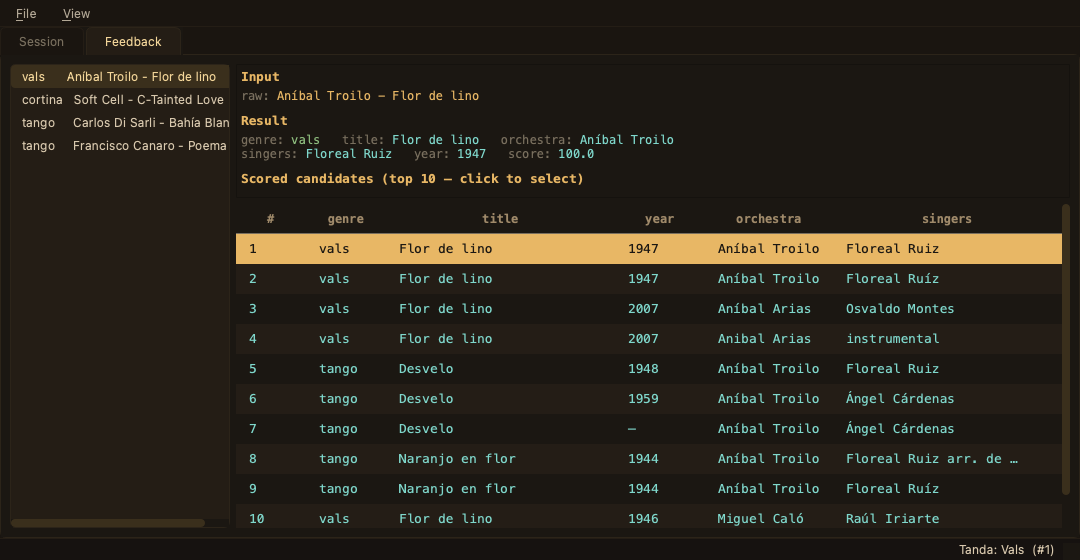
- Left — the lookup history of the evening, newest first, with the resolved genre.
- Top right — the raw input received from the DJ app and the chosen result.
- Table — the scored candidates. Click any row to push that recording onto the display immediately — the fastest way to fix a wrong match live, without touching your DJ software.
When you correct the track that is playing right now, the fix is also written into the evening's session log, so your recorded history stays accurate.
Learning from corrections
With Preferences → Matching → Learn from corrections enabled (the default), Milonga maintains a personal overlay on top of the shipped database:
- inputs you have confirmed or corrected resolve instantly next time;
- learned spellings (e.g. a recurring typo in your library) apply to future lookups;
- recordings missing from the base database can be learned as your own entries.
In addition, every track resolved via a trusted prefix is automatically saved to
learned_recordings.db — a separate personal database in the Milonga application-support
folder. As this database grows, the general matcher gains more recordings to draw from,
improving coverage for tracks not in the main database.
Your data survives application updates.
Matching settings
In Preferences → Matching:
| Setting | Default | Effect |
|---|---|---|
| Minimum match score | 68 | Candidates below this score are rejected (track becomes a cortina). Lower = more permissive, higher = stricter. |
| Treat "La Cumparsita" as closing tanda | on | See above. |
| Learn from corrections | on | Enables the personal learning overlay. |
Giving the matcher more to work with (Traktor)
Traktor's now-playing broadcast only carries title and artist. You can give Milonga access to the rest of your collection metadata (genre, dates, comments, file paths):
- In Traktor, export your collection as HTML (with all columns).
- On the Setup → Event tab, in the DJ Application group, click Use Traktor Metadata and select the exported file.
Milonga imports it once into a local lookup database. Dates and genres from your own library then corroborate the match — and when the audio file itself is reachable, its embedded tags are read too.
VirtualDJ needs no export: Milonga reads database.xml directly.