Setting up with a projector
A typical night runs entirely from one laptop: your DJ software, the Milonga control window, and the projector cable all come out of the same machine.
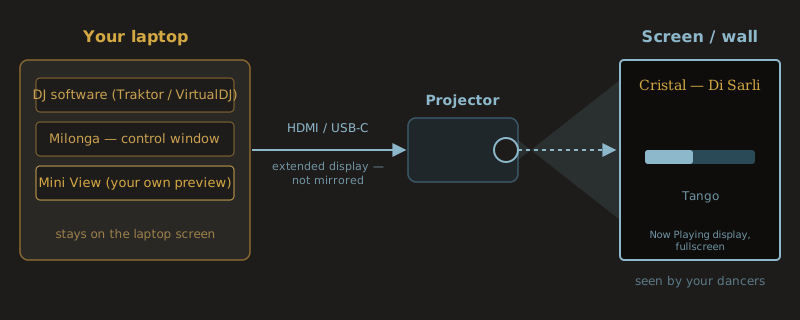
- Connect the projector to your laptop and set it as an extended display, not a mirror, so the control window and the projected display have separate space.
- Start your DJ software and, in Milonga's Setup tab, start the listener for it.
- Move the Now Playing window onto the projector with Next Screen ► (or drag it there), then click Fullscreen.
- Turn on Show Mini View so a small copy of the display stays on your own screen — you can see exactly what the floor sees without turning around, while the control window itself handles corrections and overlays.
- If a second screen is already connected the next time Milonga starts, the display finds it and goes fullscreen automatically — once you're set up, there's nothing to repeat each night.
Next: Quick start